The quotestages help you identify the step or actions to be taken on a quote. It shouldtell you in 2 or 3 words the current action and stage.
Examples:
· Canceled – Too expensive
· Quote sent
· Follow-up by phone
· Reserved
Tip: Having too manydifferent quote stages can be difficult to handle. We suggest using 3 stagesfor cancel, 1 for normal, 1 for Approved, 2 for follow-up and 1 for pending.
To modify or create new stages, go to Setup -> Quote Stages

On the list of stages, you canedit them by clicking on the blue edit button.
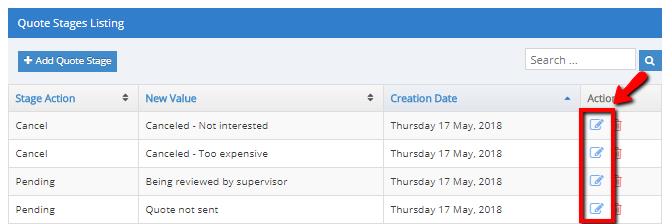
Add a quote stage by clicking +Add Quote Stage button. You need to first select a Stage Actionfrom the ones available and create your custom value that will be assigned to thequote stage:
· Canceled: When a quote is canceled.
· Approved: When quote has beenapproved.
· Follow-up: To follow-up on Quotes.
· Normal: When there is nothing elseto do.
· Pending: When quote is not sent butit has been created.

IMPORTANT! When editing aquote stage value, make sure you don’t change the stage action, changeonly the value. If you change the stage action it will affect all currentworkflow on quotes and contracts. If you don’t have any quotes or contractsdisregard the warning.